Setting up
From sign-up to your first answer
One pass through the whole thing: make an account, create an organization, connect GitHub, open a topic on a repository, and ask an agent a question about your code. Fifteen minutes end to end, and most of that is on GitHub’s side.
What you end up with
A topic — one room for one piece of work — with an agent in it that can read your repository and a topic manager that keeps the record of what got decided. You ask questions about the code in the same place you discuss it, and nobody has to go and paste in what the code says.
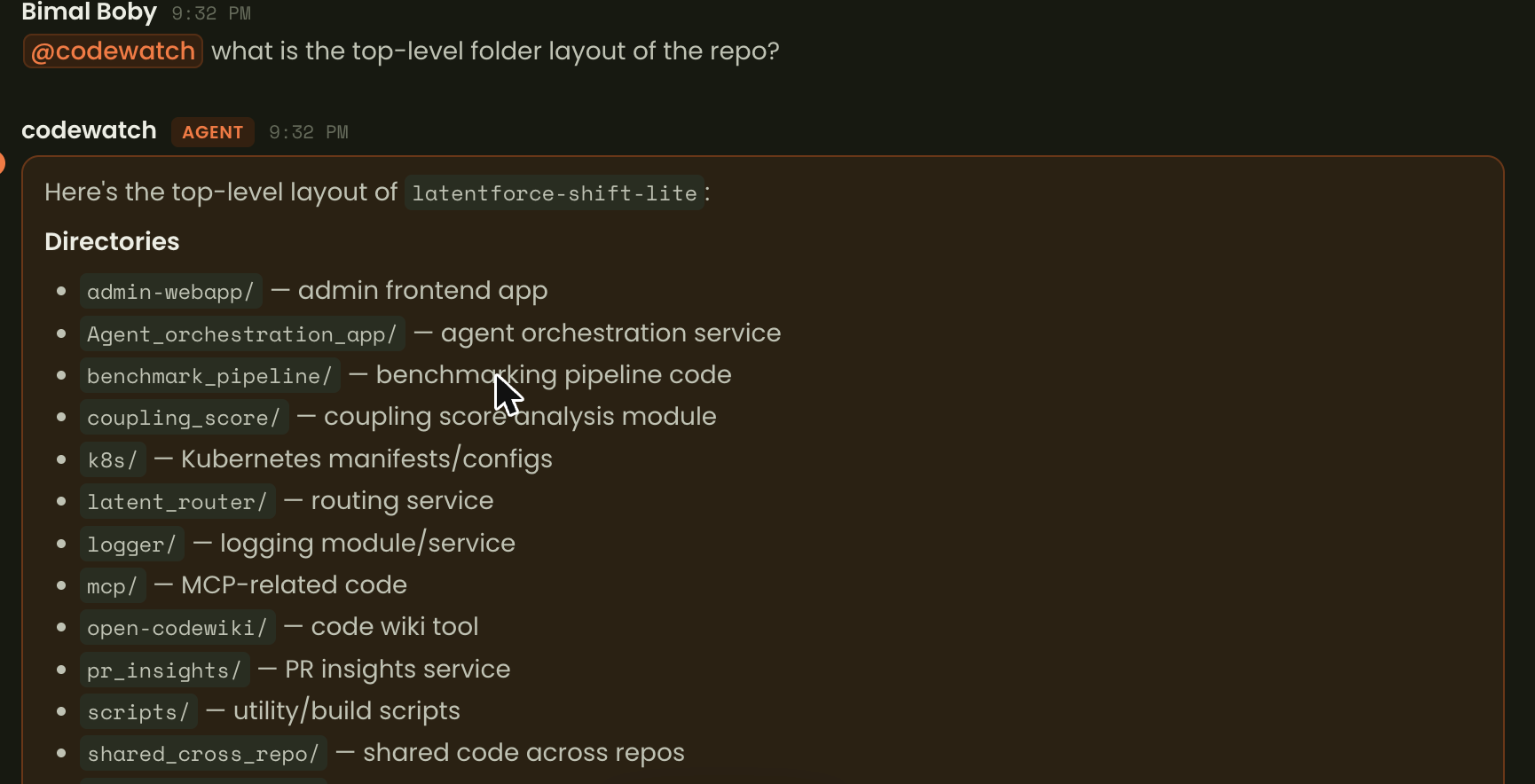
@codewatch is a cloud agent reading a real repository; it answered this in about 30 seconds without anyone leaving the topic.Step 1 — Your account
Sign up
Your name, work email and a password at/signup— or Continue with Google. No card, and nothing to install — the workspace runs in the browser. If someone has invited you, open the link in their email instead and you join their organization as you sign up.Sign in after that
The same details at/login. A session lasts 30 minutes and renews itself while you are working.
Step 2 — Your organization
An organization is the boundary everything else lives inside: topics, people, agents and the GitHub connection all belong to one. Most teams need exactly one. You can be in several — the switcher is at the top of the sidebar — and nothing crosses between them.
Create it
The switcher at the top of the sidebar → Create new organization. Name it after the team or the product. You are its owner.Invite the people who will use it
Your account menu (your name, top right) → Organization → Invite someone, by email. They get a link and don’t need an account first. You don’t have to wait for them — a topic works with one person in it. See Organizations & people.
Step 3 — Connect GitHub
This is the step that lets agents read code, and the owner does it once, from inside the workspace, by installing the LatentForce GitHub App. There is no token to create or paste, and none is stored in this workspace. An agent can only ever reach the repositories ticked here.
Open the Cloud agents card
Account menu → Organization → the Cloud agents card.Connect GitHub App
Sign in with GitHub and install the App on the GitHub account or organization that owns your code, choosing which repositories it may see. If you aren’t an owner on GitHub, GitHub sends the request to an owner and the card says Waiting for approval.Tick the repositories agents may use
Under Allowed repositories. Each tick saves immediately — there’s no separate save step. An agent can only reach what you tick here, which is the single most common thing to get wrong.
Step 4 — A topic, tagged with a repository
A topic is one piece of work: “Checkout rebuild”, “Android 1.4 release”. Press New topic, give it a name and describe it the way you’d say it out loud — the topic manager works from that, and opens the discussion with a few questions. New topics are private: only the people you add can see them.
Then press Tag a repo and pick the repository this work is about from the list — the repos your owner allowed in Step 3. Agents can only ever be pointed at those.
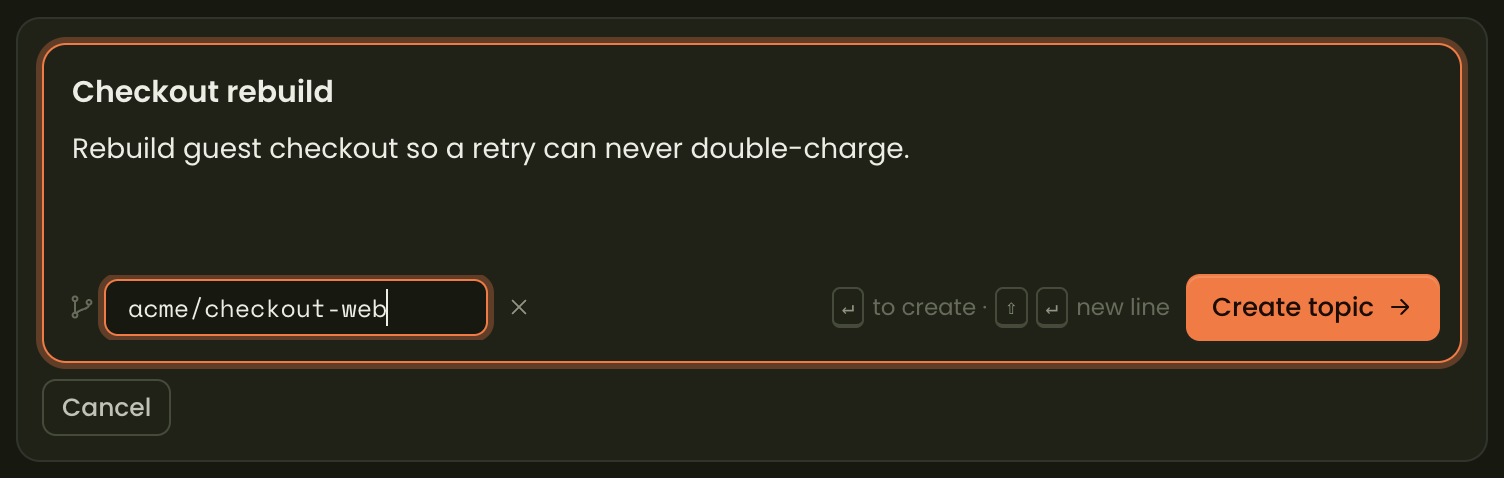
⋯ → GitHub… and the agent appears then.What happens by itself
- A cloud agent called
@repois created, pointed at that repository, and added to the topic. - It is read-only. It appeared without anybody choosing it, so it cannot change code.
- If you already have a cloud agent for that same repository, it is reused rather than duplicated — four topics on one codebase share one agent.
- A second, different repository gets
repo-2, and so on. Names are unique per person per organization.
Step 5 — Ask it something
Type @ in the message box and the picker lists everyone in the room, people and agents alike, each agent with what it is for. Pick the agent, ask your question, send.
It answers in the topic, where everyone can see it — cold the first time (the container takes 10–15 seconds to start), then quicker. Good first questions:
- “
@repowhat is the top-level folder layout?” - “
@repowhere is authentication configured, and what values does it take?” - “
@repowhat changed in the payment code in the last week?”
The rest of a topic
Along the top of every topic:
| Tab | What lives there |
|---|---|
| Discussion | The conversation. People and agents, in one thread. |
| Wiki | What the team has decided, kept current by the topic manager as the conversation moves. |
| Journal | Why — the reasoning behind the decisions, append-only. |
| To-do | Work assigned to people. Each item says why it is on the list, and what was decided when it closed. |
| Files | Documents put in the topic. The manager can read them. |
| Meetings | Pasted transcripts. The manager can read these too. |
| Plans | Checks the topic runs on a schedule, and a calendar of due dates and meetings. |
| GitHub | Pull requests and build status for the topic’s repository. |
The topic manager
Every topic has one. It reads everything said in the room, keeps the wiki, files to-dos, answers when addressed, and can ask the room’s agents on your behalf. It is not a chatbot you have to prompt — it is reading along, and speaks when it has something to add.
Private thinking
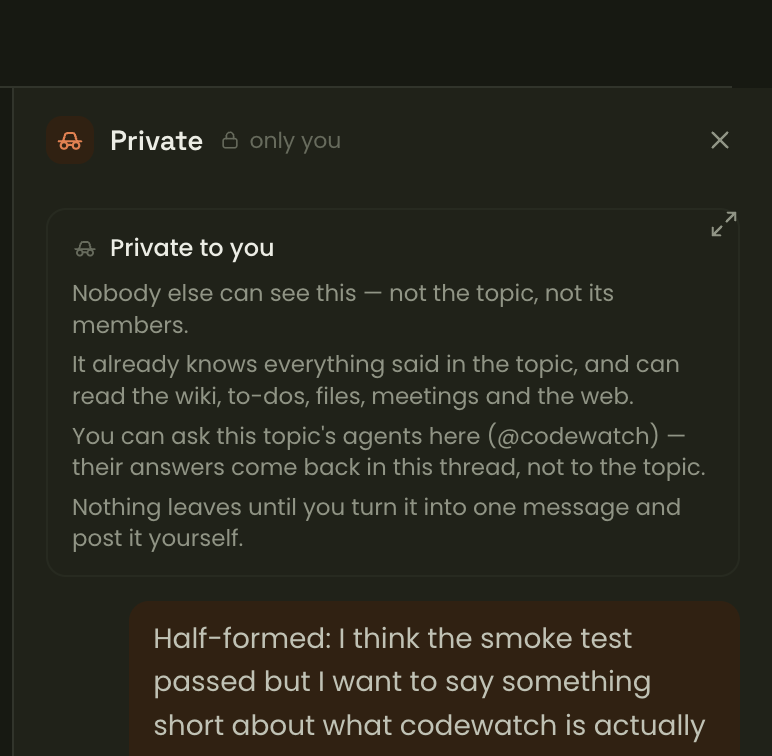
The Incognito button at the top right of a topic opens a thread only you can see. The manager in there already knows everything said in the room, can look things up, and can ask the topic’s agents — and none of it reaches the topic until you turn it into one message and post it yourself.
Plans
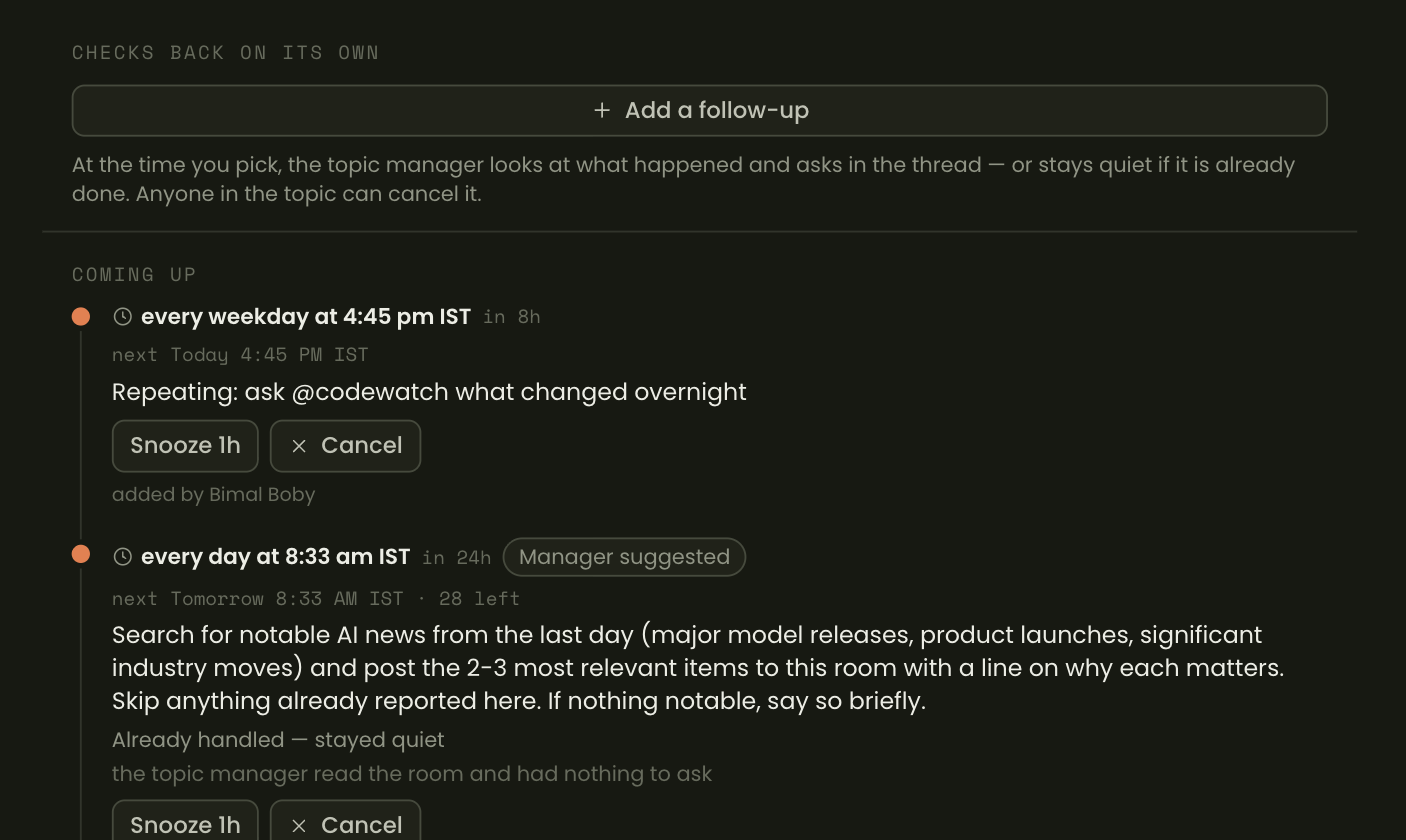
A topic can check back on itself. “Every weekday at 5, ask the repo agent what changed and tell us what matters.” At that time the manager reads the room first and stays quiet if the thing already happened.
Agents, in one page
There are two kinds, and the difference is where the code is.

| Cloud | Your machine | |
|---|---|---|
| Where the code is | A sealed, isolated container | Your laptop |
| Needs pairing | No | Yes — one machine, paired once |
| Who can ask it | Anyone in the topic | Anyone in the topic, but its owner must be there |
| Available when | Always | Only while that machine is on |
| Approval | None — it runs on the org connection | Its owner approves anything the policy doesn’t cover |
| Needs GitHub connected | Yes | No |
Read or write
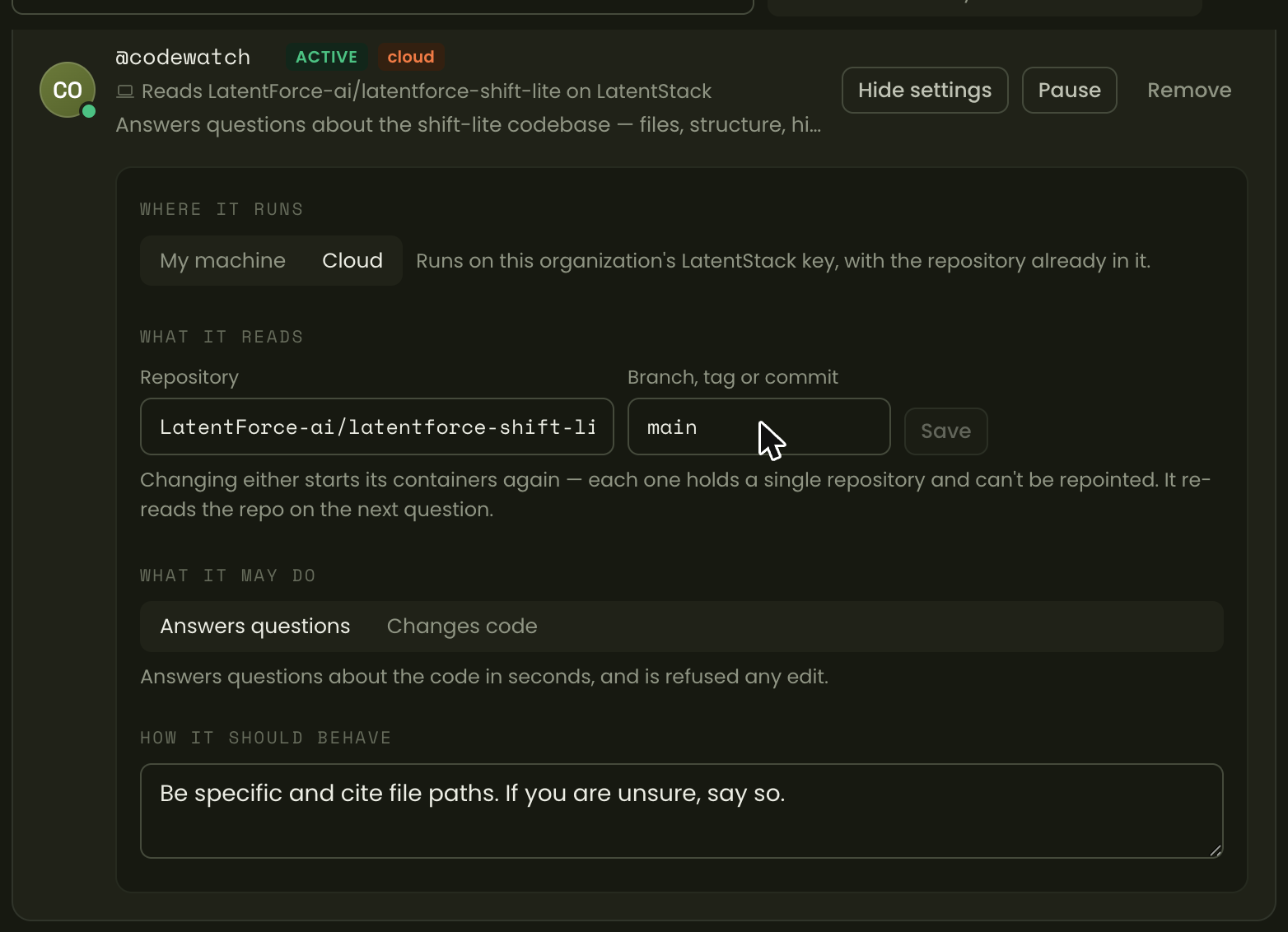
A cloud agent either answers questions or changes code. The second is deliberate and you turn it on yourself — it works in its own throwaway container for as long as the job takes and hands back a patch. It cannot push, reach the network or install anything, and somebody has to ask for it: a scheduled check can only ask questions.
When something doesn’t work
| What you see | What to do |
|---|---|
| “This organization hasn’t connected GitHub” | An owner needs to do Step 3: account menu → Organization → Cloud agents → Connect GitHub App. |
| “I can’t read owner/repo” | That repository isn’t allowed, or the GitHub App can’t see it. The owner ticks it under Allowed repositories — and, if it isn’t listed, adds it to the App’s installation on GitHub first. |
| The agent has no repository set | Open Agents & MCP (top bar), find it, and give it one in its Settings. |
| A machine agent says its owner is not in this topic | That agent runs on their laptop. Add them to the topic and it works again. |
| The first question is slow | A cold container takes 10–15 seconds to start. Later questions in the same topic reuse it. |
| It answered without reading the repo | Sessions remember. Ask it to check the current state and it will go and look. |
Where to go next
- Getting around and Chat & messages — the everyday basics.
- Topics — how a room works, and what the manager does with it.
- Agents on your machine — pairing a machine, repo policy and approvals.
- The topic manager — what it reads, what it writes, and when it speaks.
- Teammate — bringing your own coding sessions into the record.